

Registering a Programme
In this section of the manual, we will learn how to register a new programme in EnaCast and configure it so that it is recorded and published automatically according to the established schedule.
Registering a New Programme and Setting Up Automatic Recording
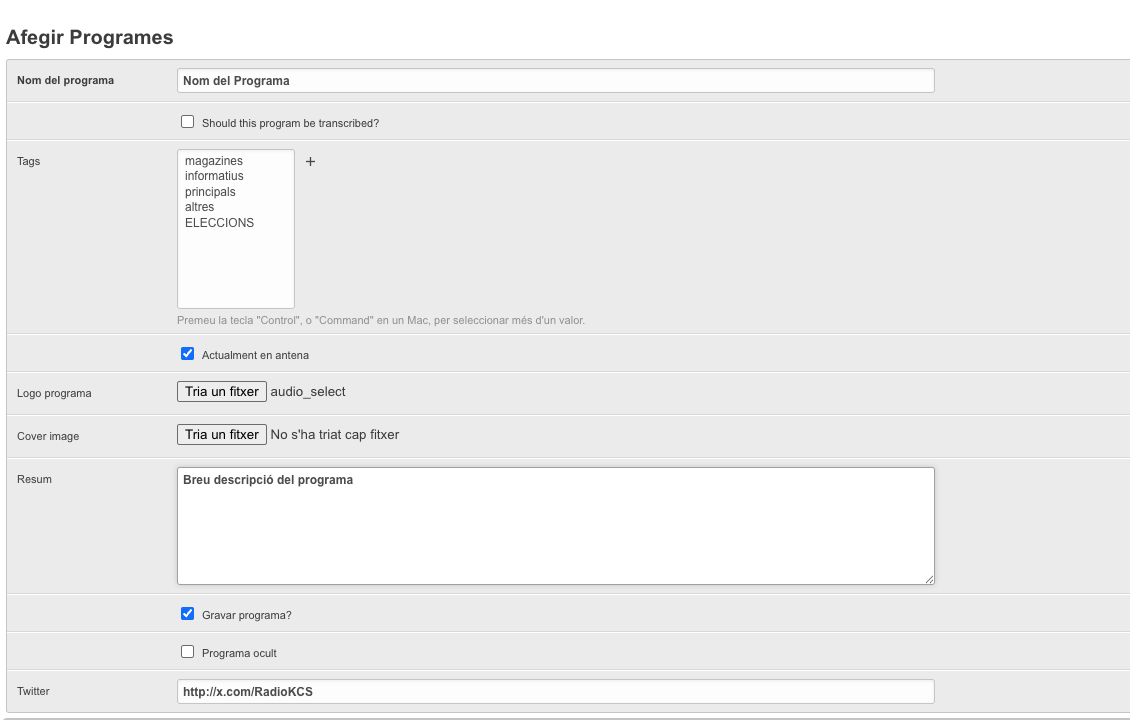
Section titled “Registering a New Programme and Setting Up Automatic Recording”Access the management panel by going to enacast.com/admin. (Use the credentials provided by the team). Once inside the control panel, navigate to the Programmes section and click the Add programme button, located in the upper right corner of the screen.
The new programme profile will then open, and you will need to fill in the following information:
- Programme name
- Short description, to provide context within the schedule grid and in the podcast repository
- Icon or representative image, preferably square (this can be the programme logo or an identifying image)
Optionally, you can add the full link to the Twitter (X) profile of the programme or the station, if you want it displayed on the website.
Next, you need to configure the broadcast time or times for the programme. This configuration is essential, as it allows the programme to:
- Appear automatically on the website’s programming schedule
- Be recorded and published automatically as a podcast once the broadcast has ended
Setting Up Automated Recordings
Section titled “Setting Up Automated Recordings”Click on the Schedule text.
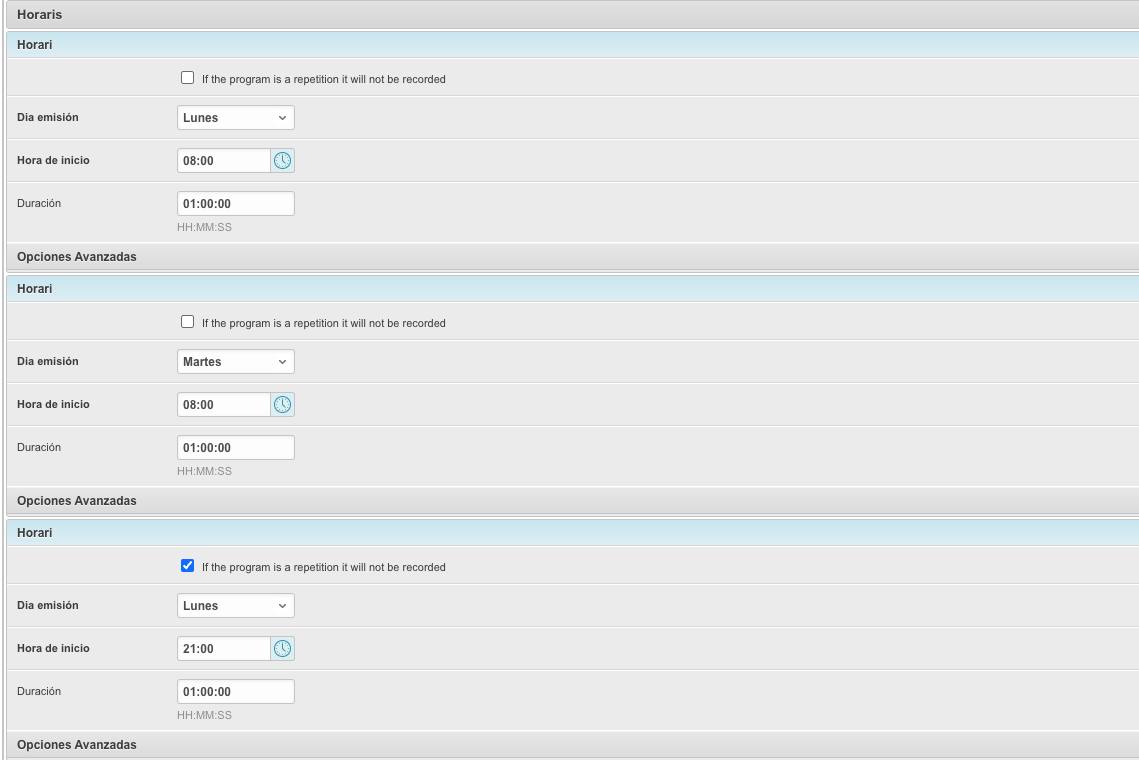
A configuration line will appear where you must specify:
- Day of the week
- Recording start time
- Programme duration
You must create as many schedule entries as there are broadcast days. In other words, if the programme airs from Monday to Friday, you will need to set up five different schedules, one for each day.
If on any of those days the programme is a repeat, you can tick the Repeat checkbox. This tells the system that the content should not be recorded again, but rather a previously recorded edition is simply re-broadcast.
Advanced Schedule Configuration Options
Section titled “Advanced Schedule Configuration Options”Each schedule allows you to configure advanced options on an optional basis, to better adapt to the needs of the programming:
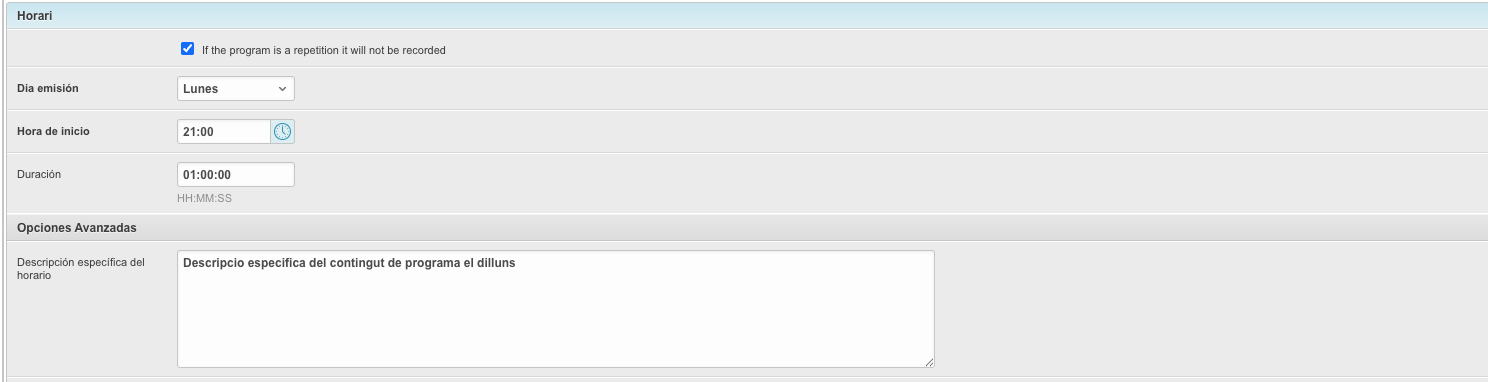
Specific Description Per Schedule
Section titled “Specific Description Per Schedule”You can add a specific description for each schedule. This is useful for programmes such as magazines, where the content may vary depending on the day of the week. For example, you can indicate that Mondays cover local news and Tuesdays cover sports.
Schedule Start and End Date
Section titled “Schedule Start and End Date”It is possible to set a start date and an end date for each schedule. This feature allows you to control the programme’s season. For example: if the morning magazine starts on 15 September and ends on 30 June, you can enter these dates so that:
- The programme starts recording automatically from 15 September.
- The recording stops automatically on 30 June.
- The programme disappears from the website schedule when its broadcast period ends.
Special Programmes
Section titled “Special Programmes”You can also configure a special programme, specifying a specific date and time at which a single broadcast should be recorded. This option is ideal for:
- One-off festivities or celebrations
- Municipal council meetings
- Notable events
⚠️ Important: the date and time configured for a special programme must match exactly the schedule you are editing.
ℹ️ Note: special schedules have hierarchical priority over regular schedules. If a special schedule overlaps with a regular schedule, only the special programme will be recorded, not the regular one.