

Audio Clips
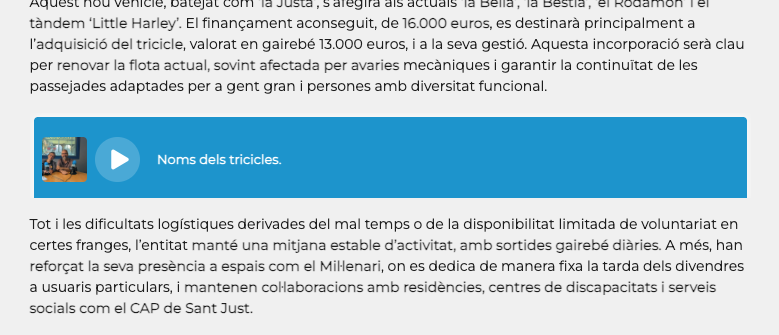
EnaCast allows you to enrich news articles with audio clips (short audio segments) through a player with an associated description and image. Example of an audio clip embedded in the body of a news article
Creating the “Audio Clips” Programme and Manual Insertion in News Articles
Section titled “Creating the “Audio Clips” Programme and Manual Insertion in News Articles”To be able to insert audio fragments within news articles, you first need a specific programme to manage them. In EnaCast, it is recommended to create a dedicated programme for this purpose called Audio clips.
Creating the “Audio Clips” Programme
Section titled “Creating the “Audio Clips” Programme”-
Go to the administration panel:
enacast.com/admin -
Navigate to the
Programmessection -
Click on
Add programme -
Fill in the following fields:
- Name:
Audio clips - Description: brief explanation of its use (optional)
- Image: upload a station icon or a representative symbol
- Name:
-
Mark the programme as
Hidden, so that it does not appear in the public listing of latest podcasts on the website.
Once the programme has been created, audio clips can be uploaded as manual podcasts.
Uploading an Audio Clip as a Manual Podcast
Section titled “Uploading an Audio Clip as a Manual Podcast”When you are writing a news article and want to add an audio clip, follow these steps:
-
Go to the
Podcastsection of the control panel -
Click on
Add new podcast -
Fill in the required fields:
- Name: descriptive title for the audio clip
- Description: a short phrase that will be displayed in the embedded
player - Image: optionally, you can add a specific image for this clip (if none is added, the programme’s image will be used)
-
In the
Programmedropdown, select theAudio clipsoption -
Upload the audio file in
MP3format
Once uploaded, the audio clip will be available for insertion into any news article from the content editor.
Inserting an Audio Clip in a News Article Using a Shortcode
Section titled “Inserting an Audio Clip in a News Article Using a Shortcode”Once we have uploaded the audio clip as a manual podcast within the Audio clips programme, EnaCast automatically generates a unique ID that identifies it. This ID is part of the podcast’s URL and is what we will use to insert it in the body of the news article.

1. Locate the Podcast ID
Section titled “1. Locate the Podcast ID”The podcast ID in this case is: radiodesvern_podcast_36445
2. Insert the Shortcode in the News Article
Section titled “2. Insert the Shortcode in the News Article”In the news editor, place the cursor where you want the audio clip to appear and write: [podcast id=radiodesvern_podcast_36445]
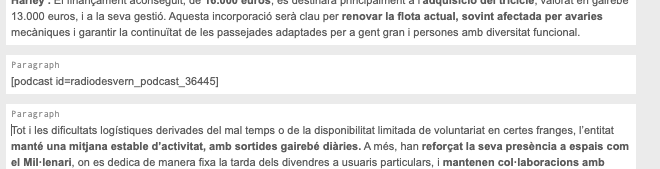
This shortcode will automatically display the audio player within the news article, with the description and associated image configured when uploading.
If you have any issues during this process, please send an email to support@enacast.com with a brief description of the problem. We will get back to you as soon as possible.