

It Only Affects Recordings
Holidays only stop automatic recordings. The station’s website, previous episodes, the RSS feed, and streaming (if you have it) keep working normally.
On the days your station doesn’t broadcast its regular programming — a local holiday, Christmas week, the summer break — there is no point recording: you’d only get empty episodes or filler music. That’s what the holiday calendar is for: you mark those days in advance and the system stops the recordings and resumes them by itself, with nothing for you to remember.
On a day marked as a holiday:
It Only Affects Recordings
Holidays only stop automatic recordings. The station’s website, previous episodes, the RSS feed, and streaming (if you have it) keep working normally.
Everything lives in EnaCast Studio, the management panel at studio.enacast.com, under Settings, in the Holidays and Public Holidays card. The card has two independent parts:
| Part | What it is for |
|---|---|
| Pause recordings now | A switch that stops every recording immediately, until you turn it off |
| Holiday calendar | The list of days and periods marked in advance, which apply and lift by themselves |
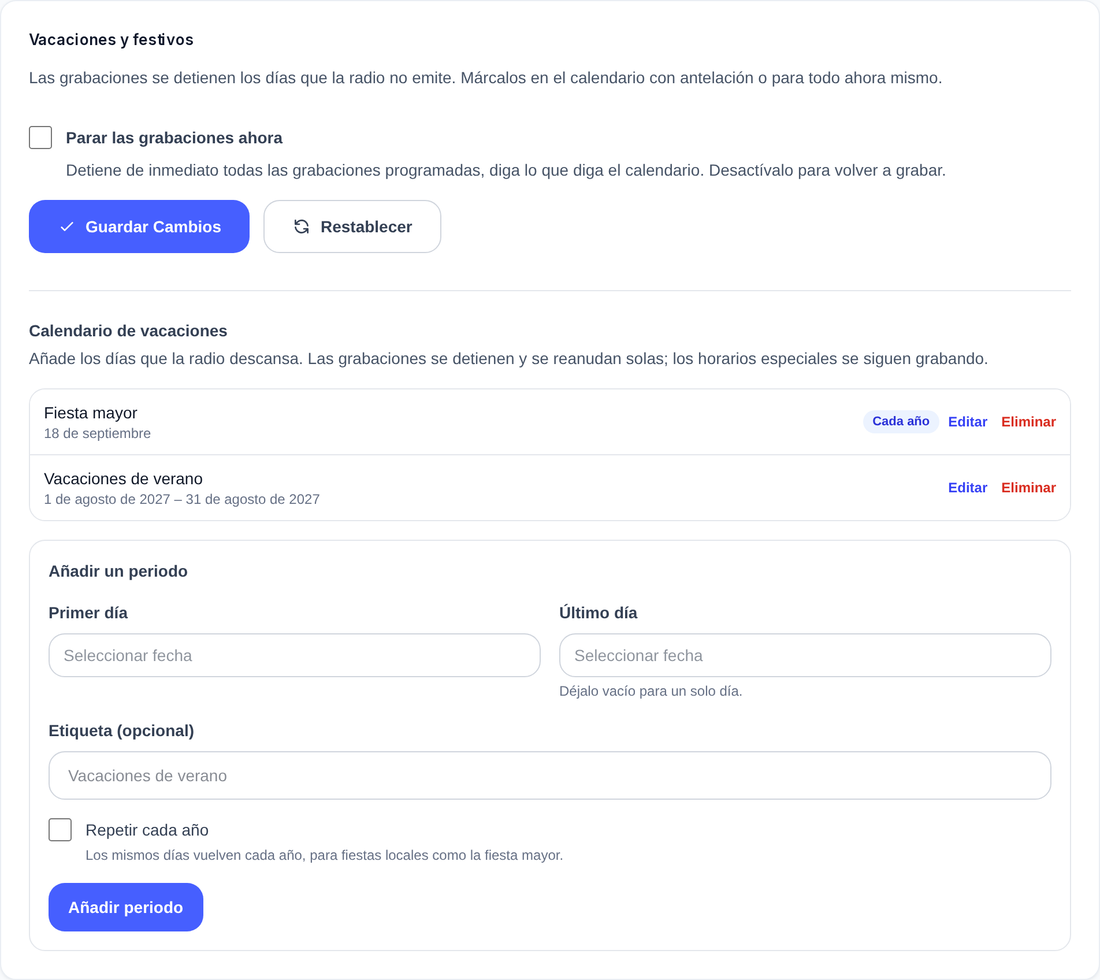
The calendar is a list of periods. Each period has:
| Field | Description |
|---|---|
| First day | The first holiday day (required) |
| Last day | The last day, included. “Leave it empty for a single day.” |
| Label (optional) | A name to recognize it in the list, for example “Summer break” |
| Repeat every year | The same days come back every year |
The dates are whole days in your station’s timezone: there are no times to adjust.
The period appears in the list with its dates and its label. Every row can be edited and deleted.
A single day and a month-long break are the same thing: a period. For a local holiday, just pick the First day and leave the Last day empty.
Examples
If you tick Repeat every year, EnaCast only looks at the day and the month of the period, not the year: it’s the option for local holidays, fixed public holidays, and the Christmas break. A period that starts in December and ends in January is correctly understood as the turn of the year.
Besides the calendar, the card has the Pause recordings now switch: “stops every scheduled recording immediately, whatever the calendar says. Turn it off to start recording again.”
It’s the emergency exit: a breakdown in the studio, a day decided at the last minute, building works on the premises. While it’s on, the card shows an amber notice — “recordings are paused. No scheduled programme is being recorded until you turn this off.” — and the Dashboard reminds you with Recordings paused (manual).
During holidays:
The EnaCast Studio Dashboard shows the holiday status at all times:
On top of that, in the Grid View of Schedules, the columns of holiday days are dimmed and carry the Holiday label, so you can see at a glance which week won’t be recorded.
While the station is on holiday, the website can show special content instead of the current show. You can customize:
These fields are configured in the Out of Schedule card on the same Settings page (see station settings).
No. If your station has streaming configured, it keeps working regardless of holidays. Only podcast recordings stop.
Yes. Tick Repeat every year when creating the period and those same days will come back every year without you entering them again. It’s the right choice for local holidays, fixed public holidays, and the Christmas break.
No: the calendar applies to the whole station. For a single show you have two options:
The recording in progress is stopped. The change takes a few minutes to reach the recording system, so the stop isn’t instant. If you want the show currently on air to finish recording, wait until it ends before turning the switch on.
The old holiday start date and end date no longer exist as separate fields: if you had dates set, they were automatically converted into a calendar period with those same dates. You can now have as many periods as you like, marked as far in advance as you like.
Related guides: Scheduling and Timetables and Automatic Episode Recording.
If you have questions, you can contact technical support at support@enacast.com
Station for personalized links: