

Regular sections
Many programs have segments that come back every week: Monday’s panel, Wednesday’s recipe, Friday’s what’s-on guide. In EnaCast Studio you can declare them on the program’s page. From then on:
- the AI analysis looks for them in every new episode and, when it finds one, gives the episode’s section (its marker) the segment’s name and image;
- EnaCast records when an expected section did not air or aired on another day;
- the public website gives each section a page with every time it aired, to listen to them one after another.
In this guide, a regular section is what you declare on the program, and a marker is one concrete section of an episode. The people who appear in the sections (hosts, collaborators, guests) are managed in People.
Create a regular section
Section titled “Create a regular section”- In the side menu, under Content, open Programs and go into the program.
- Scroll down to the Regular sections card and click New section.
- Fill in the form and click Save.
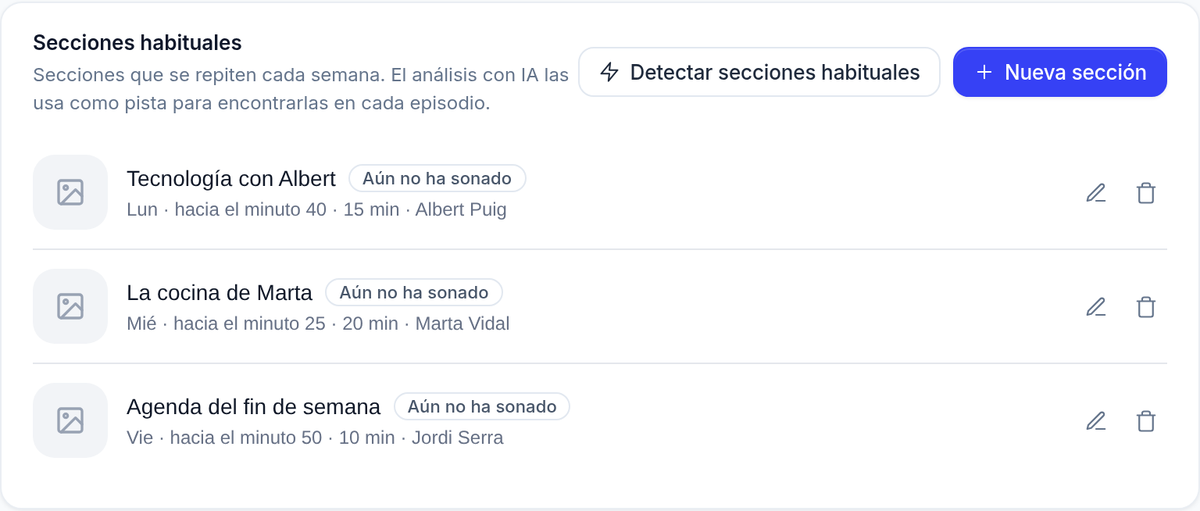
The same card appears on the program’s edit page. Radio admins, news editors and the editors of that program can manage its sections. Next to the pencil of each active section, the arrow icon View on website opens its public page. When the program has more than one section, the arrows Move “name” up and Move “name” down change their order in the list and on the website. (The screenshots show the Spanish interface of the demo station.)
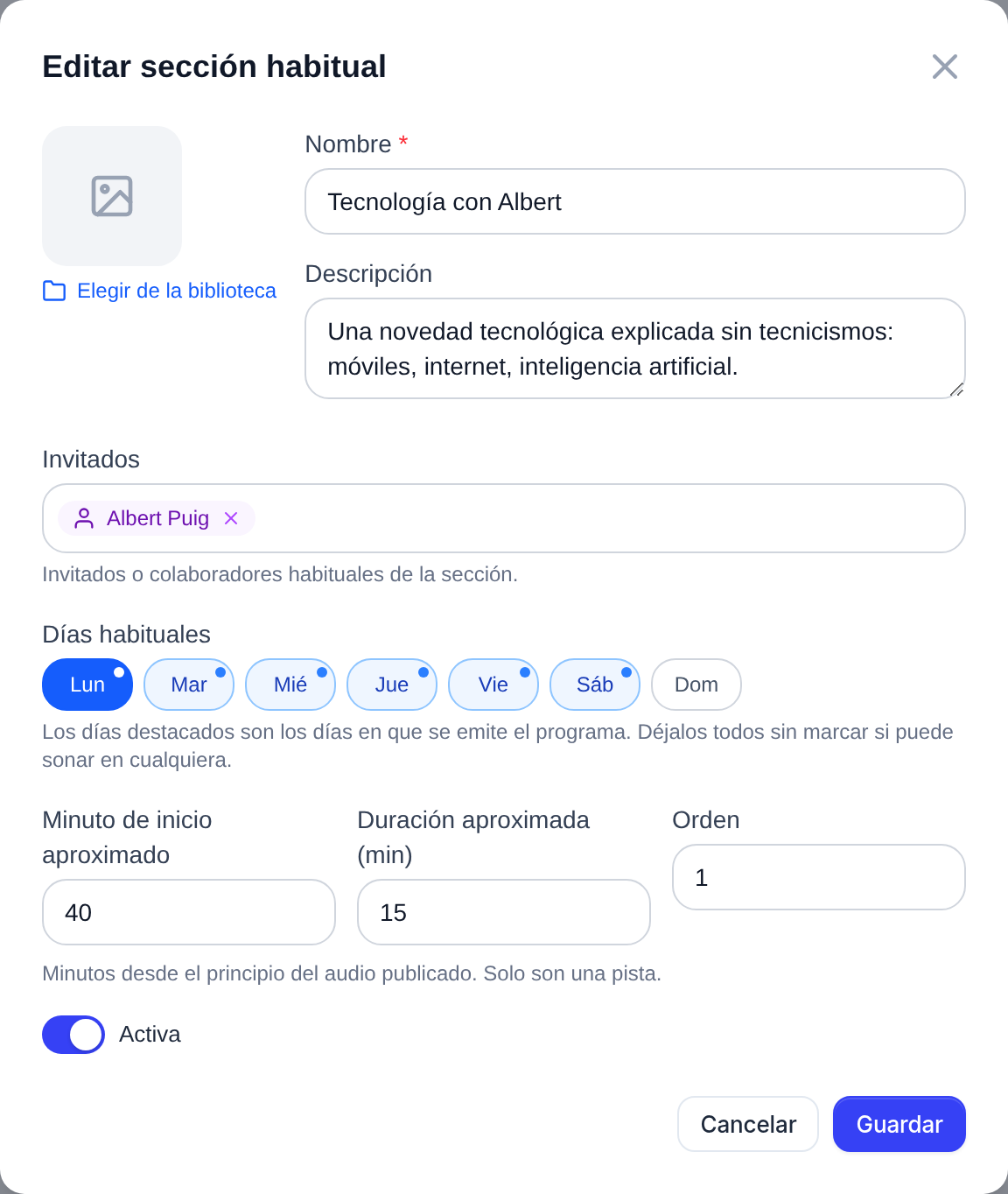
The form fields:
- Name (required): the name the section is known by, for example “Technology with Albert”. It is also what the marker’s title will start with. A program cannot have two sections with the same name; capitals and accents do not count (“Musica” and “Música” are the same name).
- Description: what the section is about. It helps the AI recognise it and is shown on the section’s public page.
- Image: with Choose from library. It is the image of the section’s public page (without one, the program’s image is used). A marker without its own image takes this image when it is linked to the section; if you change the section’s image later, markers already linked keep the one they had. In the Image Library, the Origin filter (Regular section image) and the Used in filter (Used in regular sections) find these images. On the website the image is shown square (as a thumbnail, on the program page): use a photo, not a wide montage with the photo and the program’s logo side by side. EnaCast crops the image around what matters (a face, for example), but in a wide montage one of the two always gets cut.
- Guests: the regular guests or collaborators. Type a name to search the radio’s people; if the person does not exist yet, you can create them on the spot with Create “name”.
- Usual days: the days it usually airs. Highlighted days are the days the program airs. If the section can air on any day, leave them all off.
- Approx. start minute and Approx. duration (min): optional, in minutes from the start of the published audio. They are only a hint.
- Order: the order in the list and on the website. You can also change it with the arrows in the list.
- Active: an inactive section is no longer used by the analysis and its page disappears from the website, but it is not deleted.
In the list, each section shows in how many published episodes it has aired (or Not aired yet). An episode counts once even if it has two markers of the same section.
When you create or edit one of the program’s schedules (see Scheduling and timetables), the form reminds you which sections are expected on the days you tick (“Regular sections on these days: …”), with a Manage sections link to this card. It is only a reminder: schedules and sections do not change each other.
How the AI uses them
Section titled “How the AI uses them”Regular sections are hints, not rules. A collaborator misses a week, a section moves to Tuesday because of a holiday: the AI decides in each episode whether the section aired and where.
- It applies only to episodes with full transcription (see Transcriptions and AI Insights) that are longer than 23 minutes. Shorter episodes are analysed without the regular sections.
- When the AI finds the section, it aims to create one marker covering the whole segment, titled with the section’s name followed by that day’s topic: “Technology with Albert: how to protect your passwords”. The marker is linked to the section and takes its image. Sometimes it splits a section into two or more markers (for example, when it is interrupted); each one is linked to the section, and on the public page each one is a separate clip. You can fix the markers in the audio editor.
- For each section expected on that weekday, EnaCast records whether it Aired or was Absent. If it finds a section on a weekday that is not one of its usual days, it records it as Moved (a different minute in the same show is still Aired).
- The AI records a status only when it is sure. If it cannot tell whether a section aired, it records nothing and the episode shows the section as Not analysed.
- If the program is published as several episodes on the same day, a section is not expected in an episode shorter than its Approx. start minute, so it is not marked Absent in the parts where it could not have aired.
- Programs without regular sections are analysed exactly as before.
Detect regular sections
Section titled “Detect regular sections”If you do not know where to start, let the AI suggest them. On the Regular sections card, click Detect regular sections.
- EnaCast reads the program’s analysed episodes of the last 8 weeks (their title, summary and detected markers, not the transcript) and looks for what repeats. If the program no longer airs, it takes the 8 weeks before its latest episode. It takes from a few seconds to a couple of minutes. While it reads and when it finishes, the window says how many episodes it read and which period they cover: “Read 12 episodes from … to …”.
- Proposed regular sections opens. Each proposal shows its name, description, guests (a person who does not exist yet is marked new), Usual days, approximate minute, confidence level (High confidence, Medium confidence, Low confidence), the episodes it was found in (Seen in N episodes, with the minute in each) and the ones where it was missing (Absent in).
- For each proposal:
- Accept creates the section as it is, and the new people too.
- Edit opens the form filled in with the proposal, so you can change what you need before saving.
- Discard removes it from the list.
Proposals are saved. If you close the window with proposals still to review, Review N pending proposals reopens it, and if you leave the page and come back, they are still there. The ones you already accepted or discarded, and any whose name matches a section the program already has, do not come back. Each decision is saved when you click it. If it cannot be saved (for example, because the connection dropped):
- With Discard, EnaCast tells you (“Could not save that you discarded “…”. The proposal is back in the list.”) and you can decide again.
- With Accept, if the section could not be created, the proposal stays in the list with the error “Could not create the section”. If the section was created but the decision could not be saved, the proposal no longer comes back in your browser and the card shows a notice (“1 decision on the proposals was not saved. Until they are, other browsers will not see them.”) with the Save Again button.
If you edit a proposal and save it with the name of a section the program already has, the form says so (“This program already has a section called ”…”.”) and offers Use the Existing Section: the proposal is accepted as that section and no new one is created.
While a detection is running, clicking the button again does not start another one: you keep waiting for the same run.
The detection’s limits:
- It only uses episodes with markers (detected by the AI or added by hand), up to 60 of them, newest first. If the program publishes several episodes a day, 60 episodes may cover less than 8 weeks.
- Of each episode it reads the first 30 markers. In an episode with many markers, a section near the end may be left out.
- Everything it reads fits in about 300,000 characters. If the episodes are longer, the oldest are left out, so the period read can be shorter than 8 weeks. The window tells you which period it read.
- It needs at least 2 episodes with markers in the period. Otherwise you will see “There are not enough analysed episodes in this period to detect regular sections.”
- It only proposes what it has seen in at least two different weeks: a one-off interview is not a regular section. If nothing repeats, it says so: “No recurring segment was found in these episodes.”
In each episode: correct the status
Section titled “In each episode: correct the status”On the episode page, the Regular sections card lists the sections expected on that weekday, plus any other section with a saved status (for example, one that moved day) or that you have added, with their status:
- Aired
- Moved: it aired, but not on one of its usual days
- Absent: it did not air. If you set it by hand, the episode no longer appears on the section’s public page, even if it has a linked marker.
- Not analysed: no status has been saved. This happens when the episode predates the section, lasts 23 minutes or less, has no full transcription, or the AI was not sure. You can set it yourself.
Next to the status you can see who set it: AI or Manual. If the AI got it wrong, pick the right status in Set status…. A later analysis never changes a manual status, but EnaCast keeps what the AI said aside, and the card shows it next to your correction (for example, “AI said: Absent”). Next to the status:
- Confirm turns the AI’s status into a manual one without changing it: “Keep this status as your decision: later analyses will not change it”.
- Let the AI decide removes your correction. If the AI had recorded a status, it comes back: “Remove your correction and go back to the AI’s verdict”. If it had not recorded one, the section goes back to Not analysed: “Remove your correction. The AI has not analysed it yet: the next analysis decides”.
- Add note lets you write a note about that section in the episode (Edit note changes it). A note does not change who set the status: a note on an AI status leaves it AI.
Add another section… records a section that was not expected that day (for example because it moved day).
If no section is expected that day, the card says so (“No regular section is expected on this day.”). Manage takes you to the program’s sections.
Link a marker to a section
Section titled “Link a marker to a section”In an episode’s audio editor, each marker’s form has a Regular section field, shown when the program has at least one active section. Choose the section, or None to remove the link, and save with Save Markers or Cut & Save.
- This lets you fix a marker the AI did not recognise, or link markers of older episodes.
- Linking a marker by hand sets the episode to Aired (Manual) for that section, also when it had been set to Absent by hand: the linked marker is the newer evidence.
- Removing that link, or deleting the marker, removes the Aired it had set, unless another marker of the episode is still linked to the section. The section goes back to the AI’s status, or to Not analysed.
- A marker without an image takes the section’s image.
- An inactive section only appears, marked “inactive”, on a marker that was already linked to it, so you can see the link or remove it. It cannot be chosen for a new marker.
On the public website
Section titled “On the public website”The section page. Every active regular section has its page on the radio’s website, at /podcasts/<program>/sections/<identifier>/. The identifier is created from the name the first time you save the section and does not change if you rename it: links you have already shared keep working.
The page shows the image, the description, the guests (linking to their page), the usual days and minute (“Normally on Mondays, around minute 40”) and how many times it has aired. Below are all its broadcasts, newest first, 20 per page.
- A broadcast is a marker linked to the section in a published episode. An Aired status without a linked marker adds nothing to the page, and an Absent status set by hand removes the episode from it.
- Each broadcast is a clip of the full episode: the audio is not cut; the player starts where the section starts and stops where it ends.
- Play all queues every broadcast on the page and plays them one after another.
- If the program is hidden, the page exists but search engines do not index it.
Other links. The program page shows its Regular sections in a compact block of tags side by side, each with its image and name: on wide screens in the right-hand column, next to the episodes, with each section’s guests (“With …”); on phones below the episode list, a little smaller. See all opens the page with all of the program’s sections, /podcasts/<program>/sections/, with their guests, usual days and broadcasts; each section page links to it in its breadcrumb. In an episode’s list of sections, a linked marker leads to its section’s page (“All broadcasts of …”).
Sharing and embedding. On each section’s page, the share buttons include Copy embed, which copies the code of an <iframe> with the section’s latest broadcasts: they play inside whatever website you paste it into (the contributor’s own, for example), with Play all. Each person’s page has the same button with all their sections together (People). To show sections on a page of the radio’s website, use the regular sections module.
The website’s texts are in the language of the radio’s website, not in the language of this guide. These pages exist on radio websites built with EnaCast; radios that use the WordPress plugin do not have them.
Frequently asked questions
Section titled “Frequently asked questions”Does a new section apply to earlier episodes?
Section titled “Does a new section apply to earlier episodes?”Not automatically. The AI takes a section into account in analyses made after you create it, and only while it is active. Episodes that were already analysed do not change: they keep their markers and their status is Not analysed.
For earlier episodes:
- Link the markers yourself in the audio editor, with the Regular section field, and correct the episode’s status if you want.
- To apply the sections to a whole period (for example, the program’s previous seasons), write to us at support@enacast.com. We re-analyse those episodes with the program’s sections: their AI markers, title and summary are redone. Episodes with any marker added or corrected by hand are left untouched.
What happens if I delete a section?
Section titled “What happens if I delete a section?”Linked markers keep their name, image and content; they only lose the link. The section’s status in each episode is deleted too, and its page stops existing. To stop using a section without losing its history, turn Active off (the page also disappears while it is inactive, and comes back if you reactivate it).
What happens if I rename it?
Section titled “What happens if I rename it?”The address of its page does not change. Markers that were already linked keep the title they had; new ones use the new name.
I set “Aired”, but it does not show on the website
Section titled “I set “Aired”, but it does not show on the website”The public page lists the markers linked to the section, not the statuses. Open the episode in the audio editor and link the section’s marker in Regular section (or create one if there is none).
”Detect regular sections” proposes nothing
Section titled “”Detect regular sections” proposes nothing”- The program does not have at least 2 episodes with markers in the last 8 weeks (or before its latest episode). Episodes of 23 minutes or less and those without full transcription may have no AI markers.
- What repeats has not appeared in two different weeks.
- You can create the sections by hand with New section.
The AI does not recognise a section that did air
Section titled “The AI does not recognise a section that did air”- Check that the episode is longer than 23 minutes and has full transcription.
- Sections are only used by analyses run after they were created, and only while they are active.
- A good Description and the Guests help the AI recognise it.
- In the meantime, link the marker by hand in the audio editor.
Detection failed or takes too long
Section titled “Detection failed or takes too long”- “The detection failed. Try again later.”: the AI could not finish the proposal. Try again after a while; nothing has been created.
- “The detection stopped before finishing. Try again.”: the run was interrupted (for example, by a system update) and did not finish within 15 minutes.
- “The detection is taking too long. Try again in a few minutes.”: the window has been waiting for 15 minutes. You can close it: when you come back, the page shows the result of the same run.
- “Could not start the detection”: the request did not reach EnaCast. Check the connection and try again.
Does detection use the transcription budget?
Section titled “Does detection use the transcription budget?”No. The daily transcription budget is spent on transcribing audio, and detection transcribes nothing: it reads the titles, summaries and markers the episodes already have. Declaring regular sections does not change how many minutes an episode uses either. Only one detection per program runs at a time.
Do I have to fill in the minute and the duration?
Section titled “Do I have to fill in the minute and the duration?”No. They are optional and only guide the AI. If the section has no fixed time, leave them empty.
The section also airs in other programs. Can I share it?
Section titled “The section also airs in other programs. Can I share it?”No: each section belongs to one program. Create one in each program where it airs; people, on the other hand, are shared, because they belong to the radio.
Station for personalized links: