The EnaCast programming grid defines when each show is broadcast and recorded. Each entry in the grid determines the day, start time, and duration, and from this information the system automates recording, publishing, and display on the website.
A regular schedule defines a weekly recurring broadcast. You configure it with:
Day of the week (Monday, Tuesday, etc.)
Start time (in the station’s timezone)
End time (the duration is worked out for you and shown underneath)
If a show airs on several days of the week, it needs one schedule per day. In the panel you can tick several days at once: on save the system creates one independent schedule per day, which you can then edit or delete separately.
Not every show airs every week. A regular schedule can repeat every week, every 2, every 3 or every 4 weeks, with no need to create and delete schedules by hand.
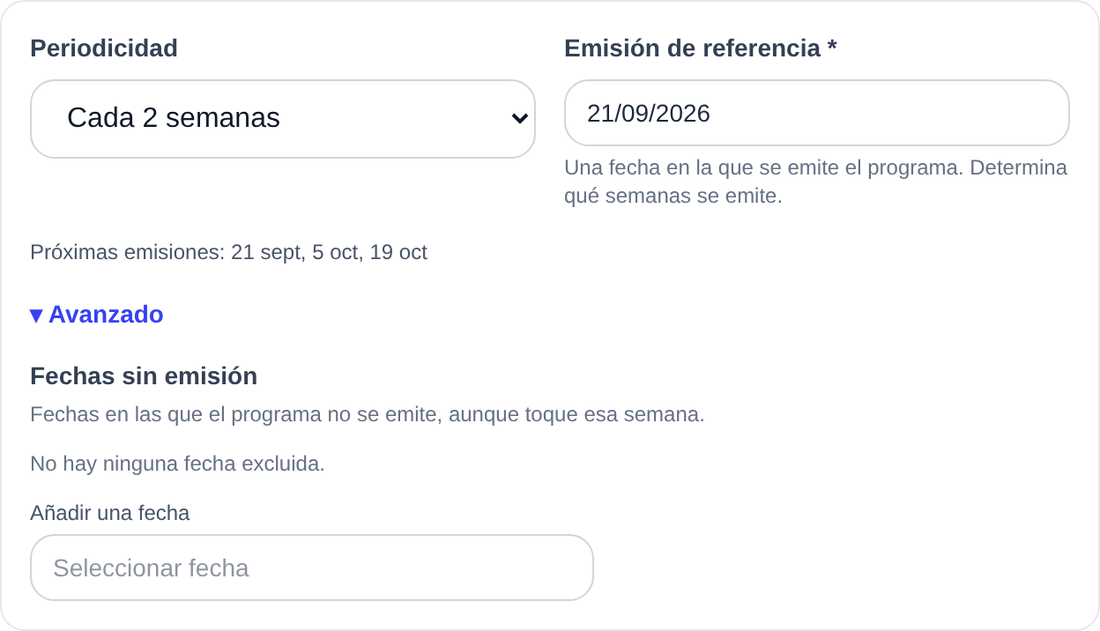
In the schedule form, the Periodicity dropdown offers:
Option
What it means
Every week
The behaviour you already know: the show airs every week (this is the default)
When you pick a periodicity above one week, the required Reference airing field appears: “a date this program airs on. It decides which weeks are on.”
It is the date that sets the rhythm of the series. From it, the system counts weeks forwards and backwards: with a 2-week periodicity the show airs on the reference week, skips the next one, airs on the following one, and so on indefinitely.
Under the dropdown there is always a Next airings: line with the three upcoming dates the show will be on air with the current settings. It is the fastest way to check the rhythm is right before saving.
Inside the form’s Advanced section there is the Skip dates block: “dates this program does not air, even when the week is on.”
Use it for one-off exceptions: a local holiday, a day the show gives up its slot for a live broadcast, a week off for the team. Dates are added one by one with Add a date and stay as chips you can remove with the ×.
On those dates the schedule does not appear on the grid and is not recorded, but the schedule itself stays intact: the following week everything goes back to normal with nothing to change.
«Ràdio Oberta», Mondays from 19:00 to 20:00, every other week
The next broadcast is Monday 21 September 2026. The configuration would be:
Schedule type: Regular schedule
Days of the week: Monday
Start time: 19:00 · End time: 20:00 (the form shows Duration: 1h)
Periodicity: Every 2 weeks
Reference airing: 21/09/2026
The form answers with Next airings: 21 Sep, 5 Oct, 19 Oct.
On Monday 28 September and Monday 12 October the show does not appear on the grid and is not recorded. If on top of that there is a local holiday on 19 October and there will be no show, add that date to Skip dates and the series carries on with 2 November.
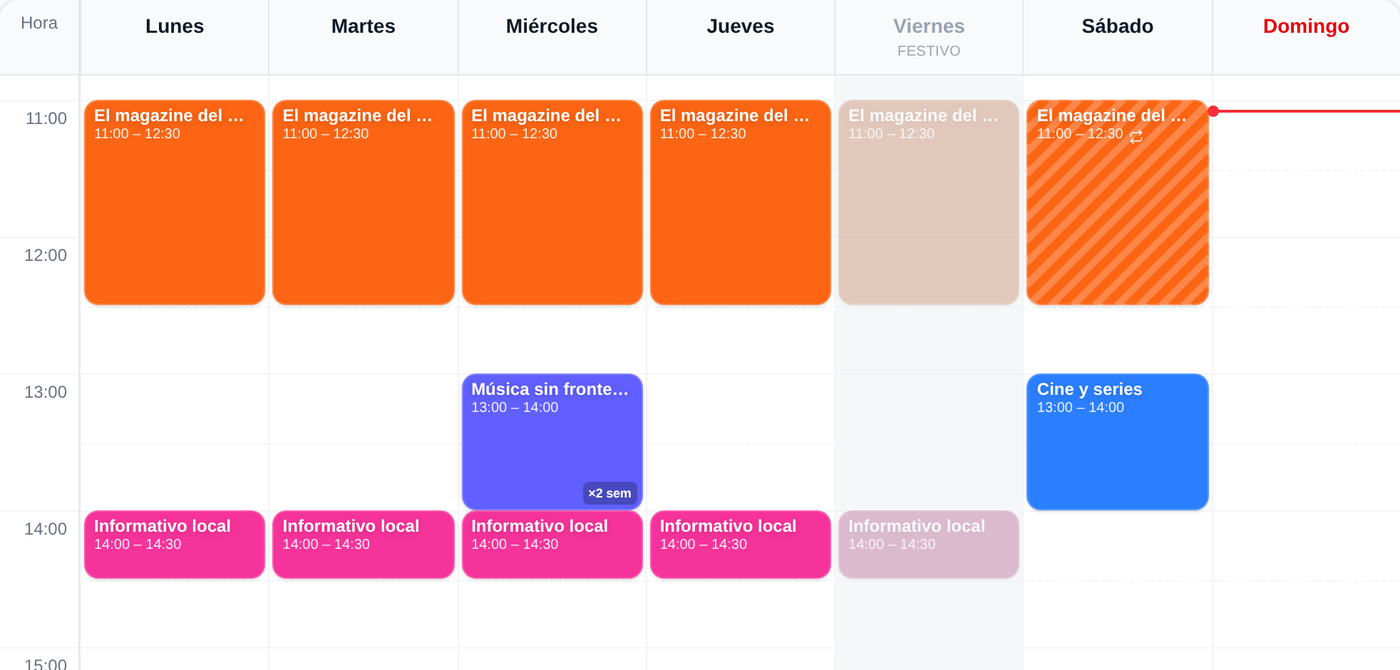
In the panel’s Grid View, a multi-week schedule is only drawn on the weeks it airs. As you move from week to week, it appears and disappears.
The block carries a badge such as ×2 wk so it can be told apart from a weekly schedule, and the grid legend includes Every few weeks.
In the List View there is a Recurrence column showing Every week, Every 2 weeks, from 21 September 2026 and, when there are any, how many dates the schedule skips.
The same rule applies everywhere: the public grid on the website only shows the show on the weeks it is on, automatic recording only kicks in on those weeks, and the now-playing programme and the “next programme” in the player follow it too. On the show’s page of the public website, the schedule reads “Monday 19:00 - 20:00 · every 2 weeks”.
If a broadcast falls on a day marked in the holiday calendar, that day is not recorded and the show does not appear on the grid. The holiday calendar does not shift the series: the next broadcast is the one that was due, not one week later.
When you create a schedule, you can tick the Is a Repetition checkbox. A rerun indicates that at that day and time, previously recorded content is being broadcast again — that is, it’s not new content.
Reruns are not recorded. The system ignores them for automatic recording, but shows them in the website’s programming grid so listeners know what’s being broadcast.
Example
A show airs on Wednesdays at 10:00 (new content) and is rerun on Saturdays at 15:00. You would configure:
Wednesday 10:00 — normal schedule → recorded
Saturday 15:00 — marked as Is a Repetition → not recorded, but appears on the grid
A special broadcast is a one-off transmission that doesn’t follow the usual weekly pattern. It’s used for unique events like sports broadcasts, holiday specials, or extraordinary interviews.
Unlike regular schedules (which are defined by day of the week), a special broadcast is configured with:
Start date and time
End date and time
Show it belongs to
Special broadcasts have no periodicity and no skip dates: they are a specific date, so the Periodicity block does not apply to them.
If two schedules coincide in the same time period, the system handles them as follows:
Two regular schedules: both are recorded simultaneously, but since they capture the same audio signal, they’ll produce duplicate recordings. It’s recommended to avoid overlaps between regular schedules.
Special broadcast + regular schedule: the special broadcast always takes priority. The regular schedule isn’t recorded while the special broadcast is running.
Two special broadcasts: they can be recorded simultaneously if they belong to different shows.
Two fortnightly shows on alternating weeks do not overlap: if they share a slot but have reference airings from different weeks, each one fills the other’s off weeks. The Grid View, which draws one specific week, is how you check it.
All scheduling is managed from the studio.enacast.com panel, under Schedules in the sidebar.
The page has two views, switched with the selector at the top:
Grid View: the week’s grid, with shows placed by day and time. You can navigate to the previous week and the next week, and come back to Today. This is the view that shows what really airs each week, multi-week schedules and holidays included.
List View: every schedule in one table, with the columns Type, Day / Date, Time, Duration, Recurrence, Validity and Actions.
Click New Schedule (top right). You can also click an empty slot on the grid: “click an empty slot to add a schedule at that time” and the form opens with that day and time already filled in.
Under Schedule Type choose Regular Schedule.
Select the Program in the dropdown.
Tick the Days of the Week it airs on (select one or more days). One schedule is created per ticked day.
Enter the Start Time and the End Time. The calculated Duration appears underneath.
Under Periodicity leave Every week or pick the periodicity you need; if you pick more than one week, fill in the Reference airing and check the Next airings line.
Optionally, open Advanced and add the Skip dates.
Optionally, set the Validity Start Date and the Validity End Date.
If previously recorded content airs in that slot, tick Is a Repetition.
Click Create Schedule (or Create N Schedules if you ticked several days).
For a special broadcast, at step 3 choose Special Program and enter the Start Date and Time and the End Date and Time.
If the program has regular sections, the form shows the ones expected on the days you tick (“Regular sections on these days: …”) with a Manage sections link. It is only a reminder: the schedule does not change the sections.