

Trimming and Editing a Podcast
EnaCast records and publishes podcasts automatically based on the information configured in the programme profile: name, description, schedule and duration.
However, once generated, the editor has the option to customise several aspects to improve the public presentation of the content.
In this section of the manual, we explain how to do it.
- Go to the administration panel at
enacast.com/admin - Navigate to the
Podcastssection - Locate the podcast you wish to edit (you can use the search function if necessary)
Editing (Trimming the Start and End of a Podcast)
Section titled “Editing (Trimming the Start and End of a Podcast)”⚠️ Important: Before you can trim the start or end of a podcast, the automatic recording must have finished correctly.
Locating the Podcast in the List
Section titled “Locating the Podcast in the List”Access the Podcasts section from the administration panel. There you will see the list of recorded episodes, as shown in the following image:

Each row represents a podcast with its key data. Make sure the podcast you wish to edit has already finished recording.
Checking Whether the Podcast Has Already Been Trimmed
Section titled “Checking Whether the Podcast Has Already Been Trimmed”In the Cut and Mark columns, if they show the value “No”, it means that:
- The podcast has not been trimmed yet
⚠️ Important: trimming a podcast can only be done once. Once saved, it cannot be modified again using this tool.
For more information on how marks (Mark) work, see the corresponding section of this manual.
Accessing the Trimming Editor
Section titled “Accessing the Trimming Editor”Click on the No in the Cut column. This will automatically open the EnaCast trimming editor, where you can precisely adjust:
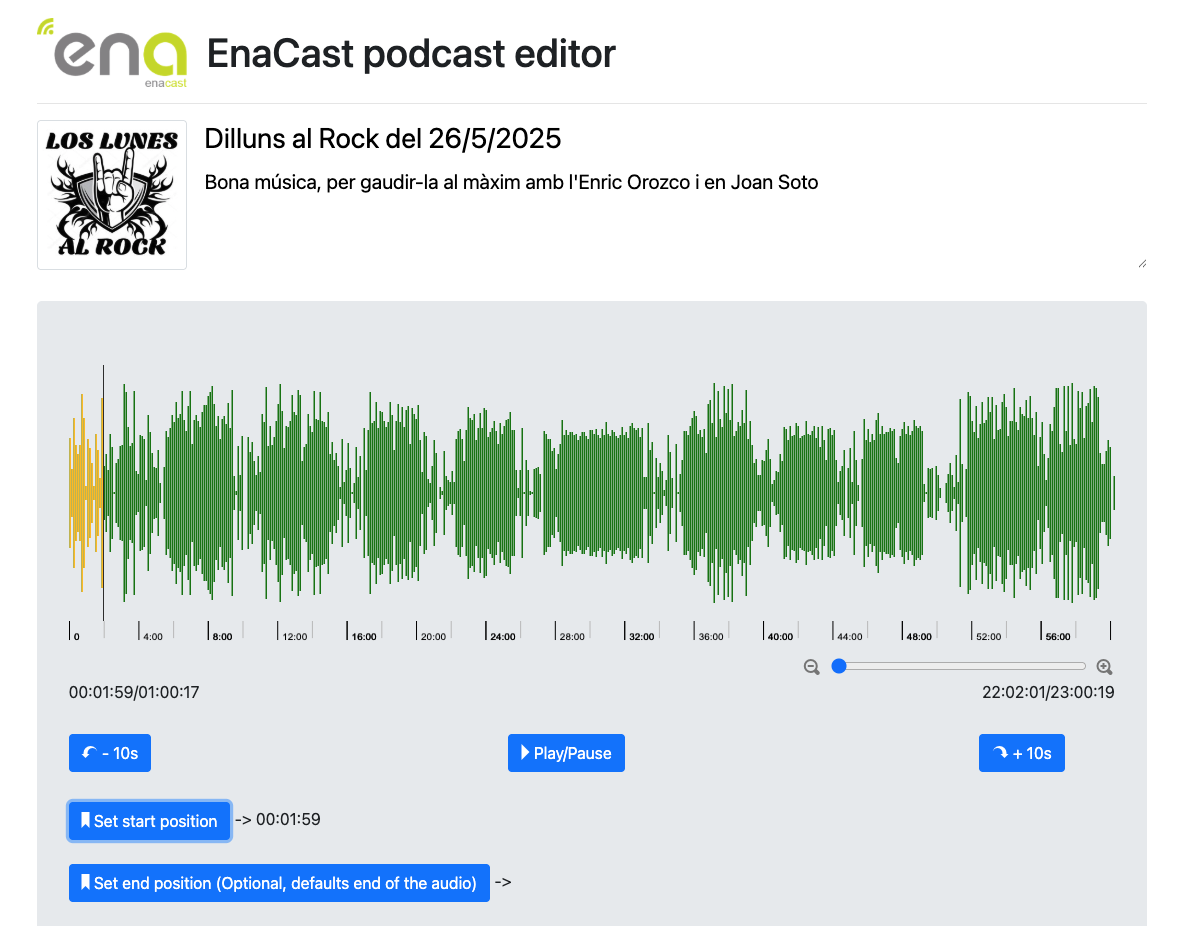
Setting the Start Point
Section titled “Setting the Start Point”- Play the audio with the
Play/Pausebutton or navigate using the 10-second forward/backward buttons, or simply by clicking on the sound waveform - Place the cursor at the exact point where the podcast should begin (for example, just after the bulletin or the automatic introduction).
- When you are at the right second, click the blue
Set start positionbutton.
This will mark the new start of the podcast.
Setting the End Point (Optional)
Section titled “Setting the End Point (Optional)”Setting an end point is optional, but it can be particularly useful for recordings that are longer than usual, such as: special programmes, sports broadcasts or municipal council meetings
- Play the audio with the
Play/Pausebutton or navigate using the 10-second forward/backward buttons, or simply by clicking on the sound waveform - Place the cursor at the exact point where the podcast should end
- When you are at the right second, click the blue
Set End positionbutton.
This will mark the new end of the podcast.
In these cases, a longer duration is often scheduled to ensure everything is recorded, but not all of the audio is always used.
Once the adjustments have been made, save the changes so that the podcast is updated with the new duration.
These options allow you to improve the editorial quality of the content you publish on the website and offer a more engaging experience to the listener.
If you have any questions during the process, you can contact technical support at support@enacast.com