

Setting Up Streaming With BUTT
Compatible operating systems: Windows 7, 8, 10, 11, macOS, Linux Download the software from the following links:
1 - Installing BUTT
Section titled “1 - Installing BUTT”Download and run the installer for your operating system. Follow the wizard’s instructions. No special configuration is required during this process.
2 - Selecting the Audio Source
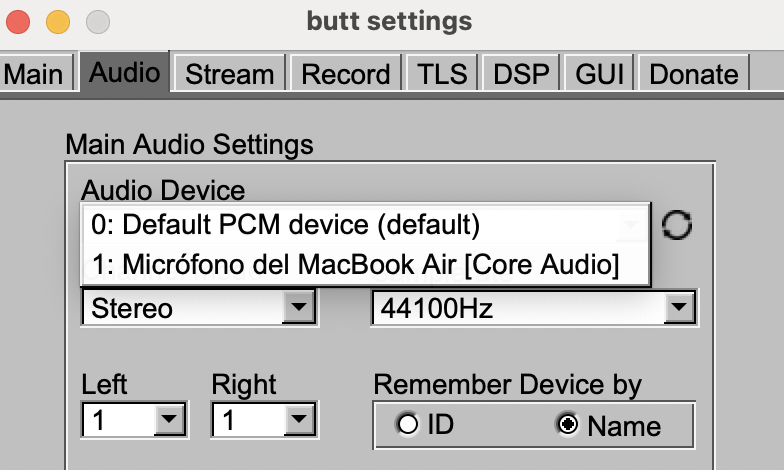
Section titled “2 - Selecting the Audio Source”Open the BUTT application. In the main window, click on Settings (gear icon). In the “Audio” tab, under the Audio Device option, select your sound card or input device (such as a microphone or a mixing desk).
3 - Configuring the Streaming Server
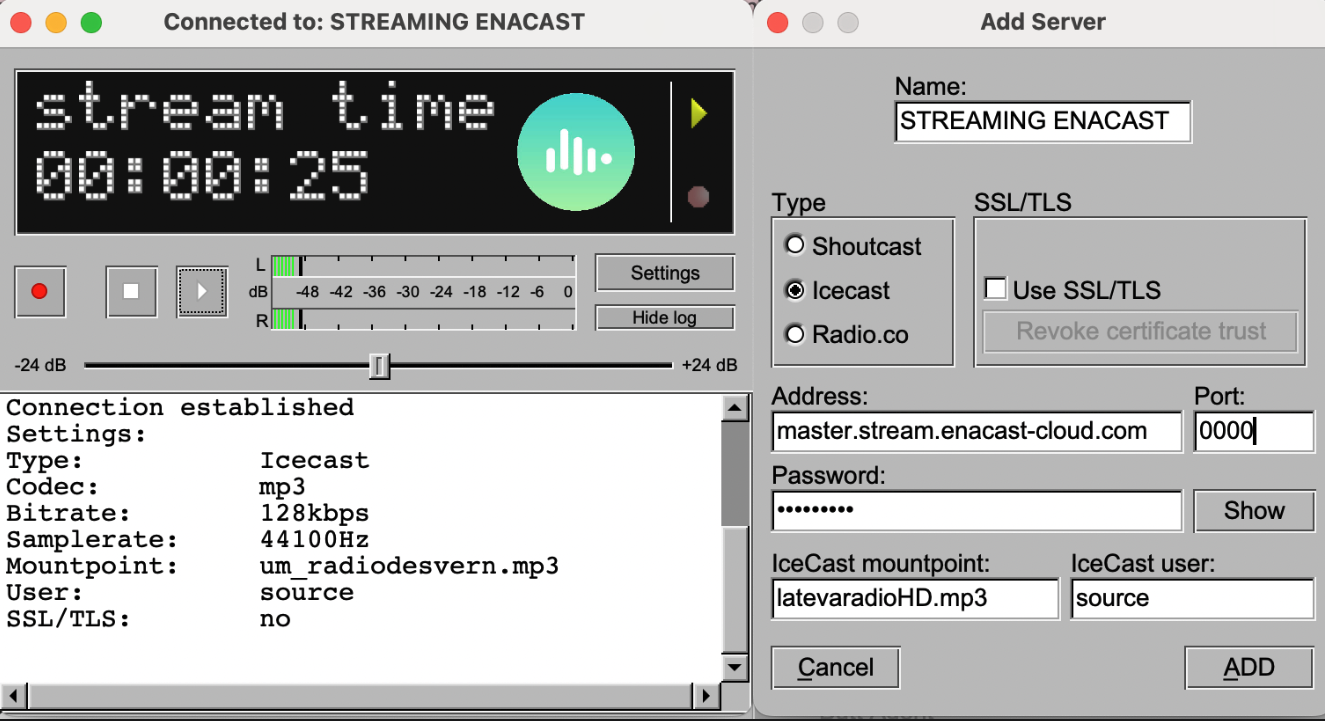
Section titled “3 - Configuring the Streaming Server”In the Stream tab, click Add to create a new server configuration.
- Server Type: Icecast
- Bitrate: 128 kbps
- Samplerate: 44100 Hz
- Channels: 2 (Stereo)
- Encoder Type: MP3
- Server IP: master.stream.enacast-cloud.com
- Server Port: (provided by EnaCast)
- Encoder Password: (provided by EnaCast)
- Mountpoint: (provided by EnaCast, e.g.: yourstationHD.mp3)
4 - Optional Metadata Configuration
Section titled “4 - Optional Metadata Configuration”In the Stream Info tab you can fill in the following fields:
- Name: Station name
- Description: Short description
- Genre: Content type
- Website: Optional
- Public: Tick this if you want it to be public
5 - Starting the Broadcast
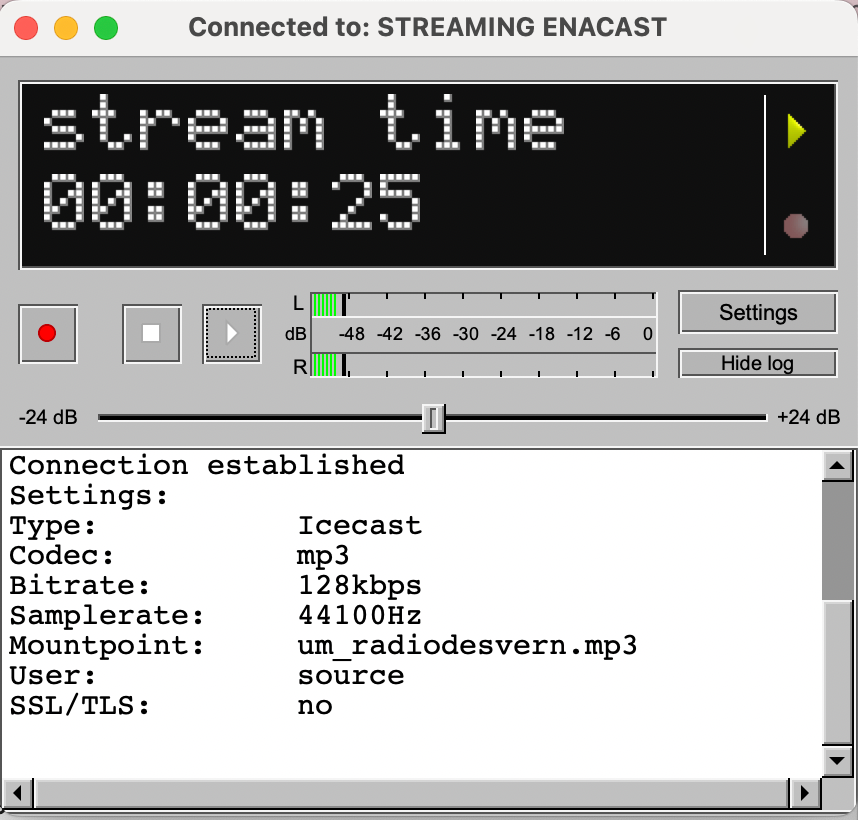
Section titled “5 - Starting the Broadcast”- Return to the main window and make sure the audio device is working by checking that the VU meter is moving.
- Then click the Play button to connect. If everything is correct, the status will show: Connected.
If you have had any problems during the configuration, please send an email to support@enacast.com with a brief description of the issue. We will get back to you as soon as possible.