

Setting Up Streaming With EdCast
Compatible Operating System
Section titled “Compatible Operating System”- Windows 7
- ⚠️ Important: Windows 10 (Must be run as administrator)
Download the software from the following link:
1 - Installing EdCast
Section titled “1 - Installing EdCast”- Run the EdCast version 3.37 installer.
- During installation, tick the checkbox: LAME encoder DLL (for MP3 encoding)
2 - Adding DLL Libraries
Section titled “2 - Adding DLL Libraries”Once installed, go to the folder: C:\Program Files\edcast or C:\Program Files (x86)\edcast on 64-bit systems) Copy the following files into this folder, which can be found on Dropbox:
3 - Running EdCast
Section titled “3 - Running EdCast”- ⚠️ Important: Right-click on the EdCast executable and select: Run as administrator
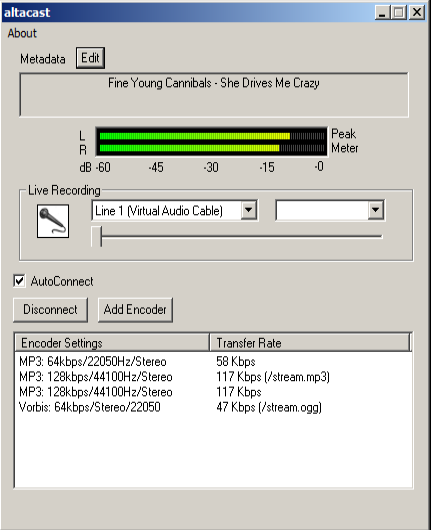
- Once open, click on the VU meter (audio level bar) to activate it
4 - Selecting the Audio Source
Section titled “4 - Selecting the Audio Source”At the bottom, where it says live recording, locate the dropdown menu showing the audio inputs. Select the sound card or source you use to broadcast audio.
5 - Adding an Encoder
Section titled “5 - Adding an Encoder”- Click on Add Encoder
- A new line will appear in the encoders window
- Double-click on the line to open the configuration window
6 - Configuring the Encoder
Section titled “6 - Configuring the Encoder”For 128 kbps (high quality)
Section titled “For 128 kbps (high quality)”- Server Type: Icecast
- Bitrate: 128 kbps
- Samplerate: 44100 Hz
- Channels: 2 (Stereo)
- Encoder Type: MP3
- Server IP: master.stream.enacast-cloud.com
- Server Port: (provided by EnaCast)
- Encoder Password: (provided by EnaCast)
- Mountpoint: (provided by EnaCast, e.g.: /yourstationHD.mp3)
For 64 kbps (standard quality)
Section titled “For 64 kbps (standard quality)”- Bitrate: 64 kbps The remaining parameters are the same as above, except for the Mountpoint
- Mountpoint: (provided by EnaCast, e.g.: /yourstationSD.mp3)
7 - Starting the Stream
Section titled “7 - Starting the Stream”- Click on Connect to start the transmission.
- If everything is correctly configured, the VU meter will move and you will see the Connected status.
If you have had any problems during the configuration, please send an email to support@enacast.com with a brief description of the issue. We will get back to you as soon as possible.